Standard Deviation Shading Tool
Parameters
Shading Options
Custom Range
Shaded Area Results
Use the standard deviation shading tool at the top of this page to shade a chosen range on a normal curve by standard deviation and read its area at a glance. Enter a mean and a standard deviation, choose Within 1 SD, Within 2 SD, Within 3 SD or Tails (beyond 2 SD), then click Update Graph: the curve redraws and the shaded-area result shows the range and its percentage.
Shading turns an abstract area into something you can see: the wider the shaded band, the larger the share of values it contains. This guide explains each shading option, works through two verified examples, and shows how this tool differs from a general bell-curve builder and from a z-score plotter. For the main 68-95-99.7 calculation, see the Empirical Rule Calculator.
What Is Standard Deviation Shading?
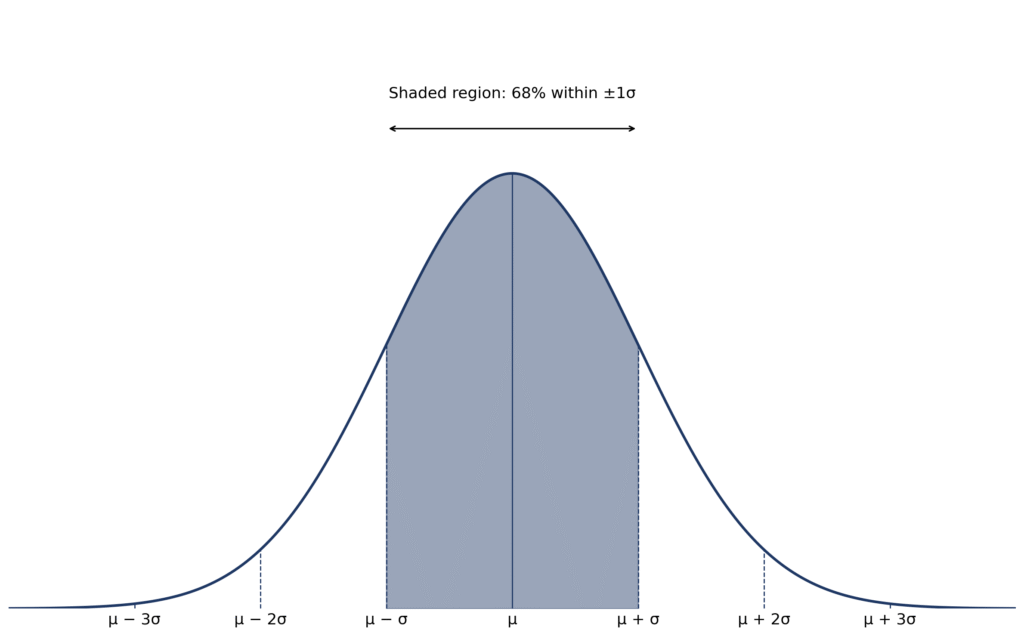
Standard deviation shading means colouring in the part of a normal curve that lies inside a chosen range, so the area you see is the share of values in that range. The curve is symmetric about its mean (μ), and the standard deviation (σ) sets how spread out it is. For data that follow a normal distribution, the shaded areas are:
- Within 1 SD (μ ± σ): 68.27%, about 68%. The central band, one standard deviation either side of the mean.
- Within 2 SD (μ ± 2σ): 95.45%, about 95%. A wider central band, two standard deviations either side of the mean.
- Within 3 SD (μ ± 3σ): 99.73%, about 99.7%. Almost the whole curve, three standard deviations either side of the mean.
- Tails (beyond 2 SD): 4.55% in total, 2.27% in each tail. The two outer parts below μ − 2σ and above μ + 2σ, which together are what is left after the 95.45% within 2 SD (100% − 95.45% = 4.55%).
These are areas under the curve, not heights on it. A taller peak does not by itself mean a larger probability; only the shaded area over a range does. If you only need to draw an unshaded curve, use the Bell Curve Generator instead.
For the background to these percentages, see What Is the Empirical Rule.
How to Use the Shading Tool
Use the tool at the top of this page in this order. No sign-up or data upload is needed.
- Enter the Mean (μ). This is the centre of the curve. For example, enter 100 for a test-score distribution with a mean of 100.
- Enter the Standard Deviation (σ). This must be greater than zero. It sets how wide the curve is: a larger value spreads values out, a smaller value clusters them near the mean.
- Tick a shading option. Choose Within 1 SD (μ ± σ), Within 2 SD (μ ± 2σ), Within 3 SD (μ ± 3σ) or Tails (beyond 2 SD). You can also add a custom range in the From and To boxes and click Add Custom Shade, but the four options above are the standard-deviation shadings this page explains.
- Click Update Graph. The curve redraws and the Shaded Area Results panel shows the range and its percentage.
- Read the result as an area. The percentage is the share of values in a normal distribution that fall in the shaded range, not a count from your own data.
Worked example 1: mean 100, SD 10, Within 1 SD
Lower limit: 100 − 10 = 90. Upper limit: 100 + 10 = 110. Shading 90 to 110 gives 68.27%, about 68%. The tool shows Range: 90.00 to 110.00 and 68.27% for this case.
Worked example 2: mean 100, SD 10, Tails (beyond 2 SD)
Two standard deviations are 2 × 10 = 20, so the tails are below 100 − 20 = 80 and above 100 + 20 = 120. The tool shows Range: < 80.00 or > 120.00 and 4.55%. Each tail is half of that: 4.55% ÷ 2 = 2.275%, about 2.27%. In other words, about 95.45% of values lie between 80 and 120, and the remaining 4.55% lie outside it.
If you are unsure whether that percentage is a percentile or a probability, see Percentile vs. Probability.
How Shading Differs from Other Tools and Common Misconceptions
Shading is useful because it turns an area into a picture: a wider shaded band means a larger share of values. For example, shading Within 2 SD immediately shows that about 95% of values lie near the mean, while the unshaded tails show how unusual values far from the mean are.
How this differs from the Empirical Rule Graph Generator
The Empirical Rule Graph Generator shows all three nested bands (68%, 95% and 99.7%) together on one curve. This shading tool is narrower and more focused: choose one shading option, such as Within 1 SD or Tails (beyond 2 SD), and read that area alone.
How this differs from the Z-Score Graph Plotter
The Z-Score Graph Plotter plots a value as a z-score on the standard normal curve, where the mean is 0 and the standard deviation is 1, and gives a probability or percentile for that z-score. This shading tool starts from a raw mean and standard deviation and shades by standard-deviation bands, so it is the better choice when your data are not already in z-score form. If you need the probability in a single tail, the Left/Right Tail Probability Calculator is a related tool for that case.
Common misconceptions
- The standard deviation is not a probability. It is a measure of spread in the same units as the data. The probability is the shaded area, not the value of σ itself.
- Curve height is not probability. A taller peak shows higher density near the mean, but only the area over a range gives a percentage.
- 68%, 95% and 99.7% describe a normal distribution, not every data set. They are good guides for approximately normal data, not guarantees for a particular sample.
- Values beyond 3 SD are rare, not impossible. About 0.27% of values in a normal distribution lie outside μ ± 3σ.
- The 95% band is not a 95% confidence interval. It is the central 95.45% of the distribution itself.
FAQs
It shades a chosen range on a normal curve by standard deviation and reads its area. Enter a mean and a standard deviation, tick Within 1 SD, Within 2 SD, Within 3 SD or Tails (beyond 2 SD), then click Update Graph. The shaded area is the share of values in that range.
Shading turns a percentage into a visible area. Instead of reading a number alone, you see how much of the curve lies inside the chosen band and how much lies outside it. For example, the Within 1 SD band covers 68.27% of the curve, so the remaining 31.73% is visibly outside it.
You need a Mean (μ) and a Standard Deviation (σ) greater than zero, plus one shading choice: Within 1 SD, Within 2 SD, Within 3 SD or Tails (beyond 2 SD). Then click Update Graph. The tool also has From and To boxes with Add Custom Shade for a custom range.
Yes. Under Custom Range, enter a From value and a To value, then click Add Custom Shade. That shades a range you choose, in addition to the standard-deviation options. For the main shading options, use Within 1 SD, Within 2 SD, Within 3 SD or Tails (beyond 2 SD).
The normal curve is the shape being shaded, so its area is the probability. Because the curve is symmetric about the mean and its spread is set by the standard deviation, shading a band such as Within 1 SD gives a direct reading: 68.27% of values in a normal distribution lie in that band.
Within 1 SD shades μ ± σ and covers 68.27%, about 68%. Within 2 SD shades μ ± 2σ and covers 95.45%, about 95%. Within 3 SD shades μ ± 3σ and covers 99.73%, about 99.7%. Each band is centred on the mean and gets wider as the number of standard deviations increases.
It shades the two outer parts below μ − 2σ and above μ + 2σ. Together they are 4.55% of a normal distribution, about 2.27% in each tail. That is what is left after the 95.45% within 2 SD: 100% − 95.45% = 4.55%.
They are rounded summaries. The more precise normal-distribution figures are 68.27% within 1 SD, 95.45% within 2 SD and 99.73% within 3 SD. Use the rounded figures for quick discussion and the precise figures when the exact area matters. They apply to normal distributions, not to every data set.
Bell Curve Generator
Build a custom normal curve for any mean and standard deviation.
Z-Score Graph Plotter
Plot a z-score on the standard normal curve and see where your value lies.
Empirical Rule Graph Generator
Visualise the 68-95-99.7 rule with a bell curve showing standard deviation intervals.
Empirical Rule Percentile Calculator
Quickly estimate percentiles in a normal distribution using the 68-95-99.7 rule.
Percentile Rank Calculator
Enter a dataset and a target value to find the percentage of scores below it.
Normal Distribution to Percentile Visualizer
Visualise your score on a bell curve with shaded percentile areas.